Skip to content
Monday–Saturday, 09:00–18:00 (Türkiye time, GMT+3) Phone: +90 533 281 23 20 satis@mutes.com.tr
E-INVOICING · EXPORT E-INVOICE

Export e-Invoices (İhracat e-Fatura) with Logo Edge N-Series (Logo Netsis)

An export e-invoice (ihracat e-Fatura) is an export invoice issued as e-Fatura and sent to GİB; after customs, the response is used to close the export in Netsis. In Logo Edge N-Series, the Foreign Trade module handles the export file and closing, and the e-Fatura module sends the invoice. Mutes Yazılım Evi helps with licenses, definitions and setup.

Which license do you need?
  • Netsis since 2004
  • Authorized Logo Netsis reseller
  • Logo Business Partner – Solution Development
  • Bayraklı, İzmir, Türkiye
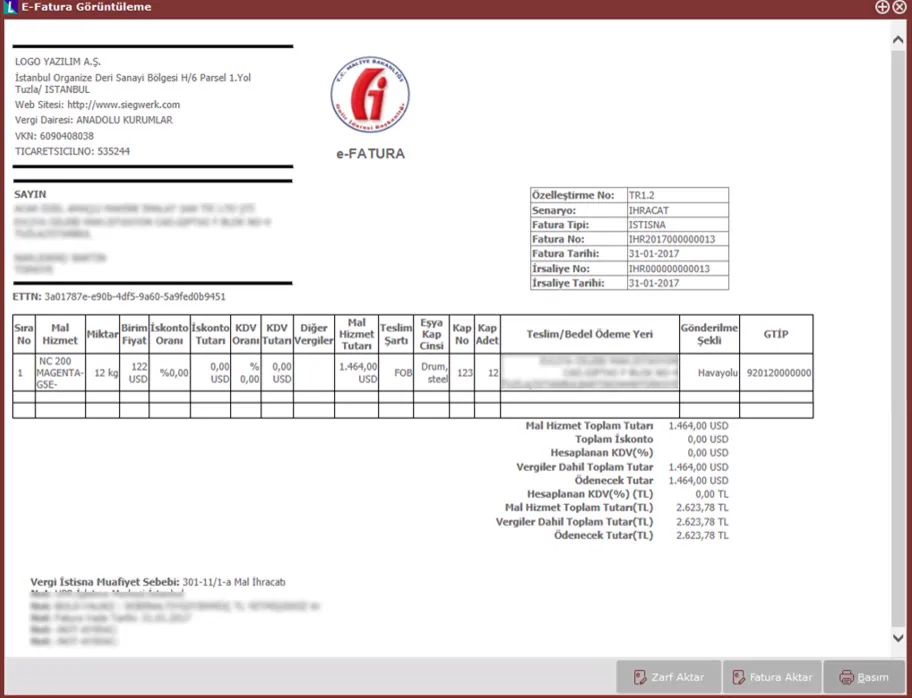
Sample export invoice on the Logo Netsis e-Fatura viewing screen
HS code (GTİP) Packing list Payment method Transport type
DEFINITION

What is an export e-invoice?

With the export e-invoice application, taxpayers registered for it also issue their export invoices as e-Fatura (Türkiye's e-invoice). The invoice is sent electronically together with the payment method, transport type, customs tariff code (GTİP) and package information.

For e-Fatura in domestic sales:What is e-Fatura?

After sending, two responses are expected. The first is the result of the technical check and carries a reference number used for tracking. If there is no problem at customs, the second response contains the registration number of the customs export declaration (gümrük çıkış beyannamesi, GÇB) and the actual export date. Netsis uses these two pieces of information to close the export.

REGULATIONS

Who must issue export e-invoices?

GİB regulations decide which taxpayers issue their export invoices as e-Fatura. Because the scope and the codes to be used can change, we give this information only in the box below.

The date we last checked the information is shown below the box. Before you decide, we recommend also reading the current text at the source link.

LICENSE

Which license do you need in Netsis?

Export e-invoices use two modules together: the export file and export closing are handled with the Foreign Trade (Dış Ticaret) module, and sending the invoice to GİB as e-Fatura requires the e-Fatura module (or e-Dönüşüm Bundle 1/2). Both are paid optional modules in the Logo Edge N-Series Basic and Standard packages.

Package Foreign Trade (export file and closing) e-Fatura (sending to GİB)
Logo Edge N-Series Basic Paid option · price list name "Dış Ticaret (İthalat/İhracat Kapama)" (Foreign Trade, import/export closing) Paid option · "e-Fatura özel entegratörlük entegrasyonu" (e-Fatura private integrator integration) or e-Dönüşüm Bundle 1 / Bundle 2
Logo Edge N-Series Standard Paid option · price list name "dış ticaret" (foreign trade) Paid option · "e-Fatura özel entegratörlük entegrasyonu" (e-Fatura private integrator integration) or e-Dönüşüm Bundle 1 / Bundle 2
Module names are as written in Logo's recommended price lists for Logo Edge N-Series Basic and Standard, with an English translation in parentheses; Logo's product page marks these modules as paid options. We confirm the N-Series equivalent of your installed Netsis package with you at the quote stage.
Sources: Logo Edge N-Series Basic price list (opens in a new tab) · Logo Edge N-Series Standard price list (opens in a new tab) (valid from September 3, 2026) · Logo Edge N-Series product page (opens in a new tab), comparison table · Last checked: October 10, 2026
According to Logo's earlier Netsis guide, once the license is defined, the İhracat Faturaları E-Fatura Olarak Oluşturulsun (Create export invoices as e-Fatura) option appears in the e-Fatura parameters.
DEFINITIONS

Which definitions do you set up before you start?

Screen and field names are shown as they appear in the Turkish interface of Netsis, with an English translation in parentheses.

Document series (belge birim kodu)

A series for export invoices is defined on the Çoklu Seri Giriş Ekranı (Multiple Series Entry screen), opened from the "İhracat Faturaları Belge Birim Kodlarınızı Buradan Girebilirsiniz" (Enter your export invoice document series here) link.

Package definitions

For each package code, enter the "Paket Markası" (package brand) and "Paket Cinsi" (package type).

SCREEN
Lojistik–Satış › Fatura › Kayıt › E-Fatura İşlemleri › Paket Tanımları (Logistics–Sales › Invoice › Entry › e-Invoice Operations › Package Definitions) or Lojistik–Satış › Dış Ticaret › Kayıt › Paket Tanımları (… › Foreign Trade › Entry › Package Definitions)

Payment descriptions

For each payment type, define an "Uluslararası Ödeme Kodu" (international payment code).

SCREEN
E-Fatura İşlemleri › Ödeme Açıklamaları (e-Invoice Operations › Payment Descriptions) or Dış Ticaret › Kayıt › Ödeme Açıklamaları (Foreign Trade › Entry › Payment Descriptions)

GTİP

Each stock item on an export invoice must have a customs tariff code on its stock card (Stok Kartı › Ek Bilgiler › Gümrük Tarife Kodu; Stock Card › Additional Information › Customs Tariff Code). An export e-invoice cannot be created with a stock item that has no GTİP.

STEP BY STEP

How do you issue an export e-invoice in Netsis, step by step?

The process starts with the sales dispatch note (satış irsaliyesi, the document that goes with shipped goods).

Sales dispatch note
Export information and packing list
e-Fatura
GİB
Customs response
Closing the export
  1. 1. Enter the sales dispatch noteOn the Lojistik–Satış › Fatura › Kayıt › Satış İrsaliyesi (Logistics–Sales › Invoice › Entry › Sales Dispatch Note) screen, use the export e-invoice series. The dispatch note is created as import/export type, and the program writes the required special code to the totals tab.
  2. 2. Fill in the export informationRight-click on the screen, open "İhracat Bilgileri" (Export Information) and create the packing list (çeki listesi). Ödeme Şekli (payment method), Nakliye Tipi (transport type), GTİP and Paket Tipi (package type) are required. You enter the package type by double-clicking the stock code; stock can be packed in parts or as a whole.
  3. 3. Complete the dispatch noteSave with "Tamam" (OK). Until the e-Fatura draft is created, you can change the export information on the same screen.
  4. 4. Create and send the e-invoiceThe export information you entered is added to the invoice's XML content. The invoice is sent as an export invoice type.
  5. 5. Track the responsesOpen the outbox by envelope. The information in the responses is written to the "GTB REF NO" (reference number), "GTB GÇB TECİL NO" (customs export declaration registration number) and "GTB FİİLİ İHRACAT TARİHİ" (actual export date) fields in Netsis.
  6. 6. Close the exportAfter the acceptance response arrives, you close the export. If a rejection response arrives, the invoice is created again with a new sales dispatch note.
Checklist
  • An export e-invoice cannot be created from a dispatch note without a packing list.
  • All stock items on the invoice must have a GTİP.
  • If an item was entered without a GTİP, delete the item, define the GTİP on the stock card and enter the item again.
GUIDE
SPECIAL CASES

What about export-registered and micro export invoices?

Export-registered invoice

An export-registered invoice (ihraç kayıtlı fatura) is issued when goods are sold to an exporter to be exported, and VAT is applied differently from a normal sale.

Micro export

Micro export (mikro ihracat) is the export of small shipments to buyers abroad under a simplified procedure.

The rules and limits for both are set by the applicable regulations. We will cover the Netsis steps in a separate guide, in Turkish. Regulation box
WITH MUTES

What does Mutes do for your export e-invoices?

As an Authorized Logo Netsis reseller, we supply the Foreign Trade and e-Fatura licenses that fit your package. We set up the series, package, payment and GTİP definitions, and issue your first export invoices with you. When you get a rejection response or get stuck closing an export, we provide phone, online and on-site support according to your support package. Ask us about the language of support and training when you request a quote.

For export e-invoices, we set up the Foreign Trade and e-Fatura modules together; both are paid optional modules in the Logo Edge N-Series Basic and Standard packages. We determine the N-Series equivalent of your installed Netsis package with you at the quote stage. You can compare the modules of the two packages on our Logo Edge N-Series (Logo Netsis) page.

Request a quote for export e-invoice setup → Logo Edge N-Series (Logo Netsis) Netsis Modules
PRODUCTLogo Edge N-Series
Foreign Trade modulepaid optional
export file and export closing
e-Fatura modulepaid optional
sending the invoice to GİB as e-Fatura (or e-Dönüşüm Bundle 1/2) Both modules together

Other e-documents

e-Fatura → e-Arşiv → e-İrsaliye → e-Defter →

For current account reconciliation: Logo e-Mutabakat (not a GİB e-document)

Frequently asked questions

Which license do I need for export e-invoices in Netsis?

In Logo Edge N-Series, export e-invoices use two modules together: the export file and export closing are handled with the Foreign Trade (Dış Ticaret) module, and sending the invoice to GİB as e-Fatura requires the e-Fatura module (or e-Dönüşüm Bundle 1/2). Both are paid optional modules in the Basic and Standard packages. We clarify the licenses you need for your installed package at the quote stage.

What happens if an export e-invoice is rejected?

An export e-invoice that receives a rejection response is created again from the start with a new sales dispatch note. The invoice can be rejected by customs officials, and an exporter who notices a problem with an invoice can also reject it through the portal. You see the reason for the rejection in the envelope information in the outbox.

How do I issue an export-registered invoice (ihraç kayıtlı fatura)?

An export-registered invoice is issued when goods are sold to an exporter to be exported, and VAT is applied differently from a normal sale. Its scope and the codes to use are set by the applicable regulations. We will cover the Netsis steps in a separate guide; until then, you can contact our support team for setup and use.

How do I issue a micro export (mikro ihracat) invoice?

Micro export is the export of small shipments to buyers abroad under a simplified procedure. The amount and weight limits, and the information to use on the invoice, are set by the applicable regulations. We will explain how to issue these invoices in Netsis in a separate guide.

Is GTİP required on an export e-invoice?

To create an export e-invoice in Netsis, every stock item on the invoice must have a customs tariff code (GTİP) on its stock card; an invoice cannot be created with a stock item that has no GTİP. The GTİP is sent in the invoice's XML content together with the payment method, transport type and package type. If an item was entered without a GTİP, it is deleted and entered again after the code is defined.

Last updated:

Let's move your export invoices to Netsis together

Tell us which Netsis package you use and how you export. We'll prepare a quote covering the licenses you need, the definitions, and issuing the first invoices together.

Monday–Saturday, 09:00–18:00 (Türkiye time, GMT+3) · Tepekule Mah. 2084/8 Sk. No:39/A, 35530 Bayraklı/İzmir, Türkiye

Choose which cookie categories you allow. You can change your choice at any time with the "Cookie settings" link at the bottom of the page.

Strictly necessary cookies Needed for the site to work securely and to remember your choice.
Always on
Analytics (Google Analytics) Helps us measure how the site is used. If you do not consent, Google Analytics is not loaded at all.
External content (YouTube, Google Maps) Embedded videos and maps load from third-party servers and may use cookies. While this is off, you can still load each item with one click.
Open in a new tab (opens in a new tab)